What you can create with OmniDraw
Here are some common workflows to show what's possible. Just describe what you want to your AI — OmniDraw handles the rest.
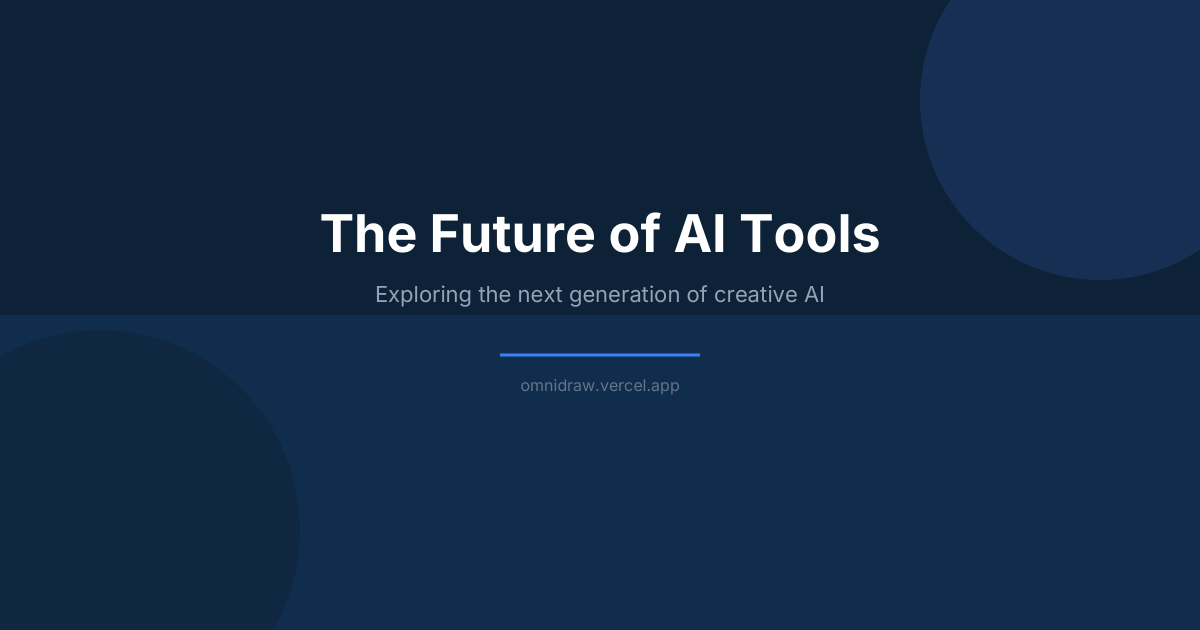
Create a social media banner
Ask your AI to create a project, set up a 1200×630 composition, draw a gradient background, add your brand name in bold text, and export as PNG.
Example prompt
“Create a banner for my blog post about AI tools. Use a dark blue gradient background with white text saying 'The Future of AI Tools' in the center.”
Design a simple logo
Start a project, draw shapes and text to compose a logo, iterate with undo/redo until it looks right, then export at high resolution.
Example prompt
“Design a minimal logo for a coffee shop called 'Morning Brew'. Use a circle with a coffee cup icon and the name below it.”
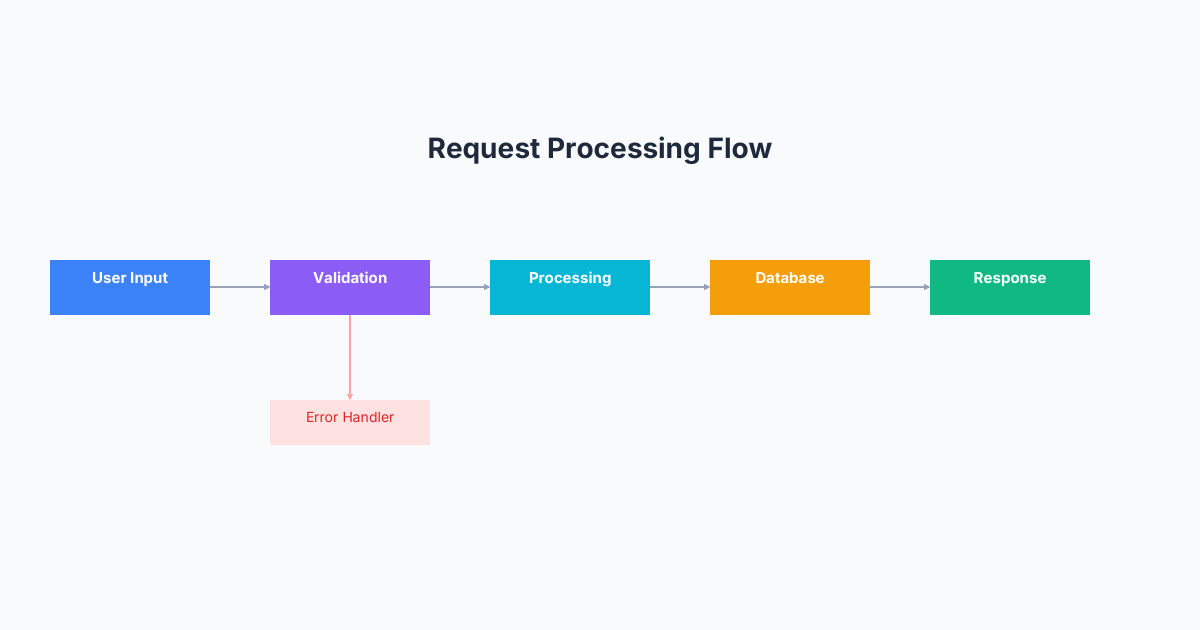
Build a diagram
Create a composition, draw rectangles and connecting lines to lay out a flowchart or architecture diagram, add labels, and export.
Example prompt
“Draw a flowchart showing: User Input → Validation → Processing → Database → Response. Use rounded rectangles and arrows.”
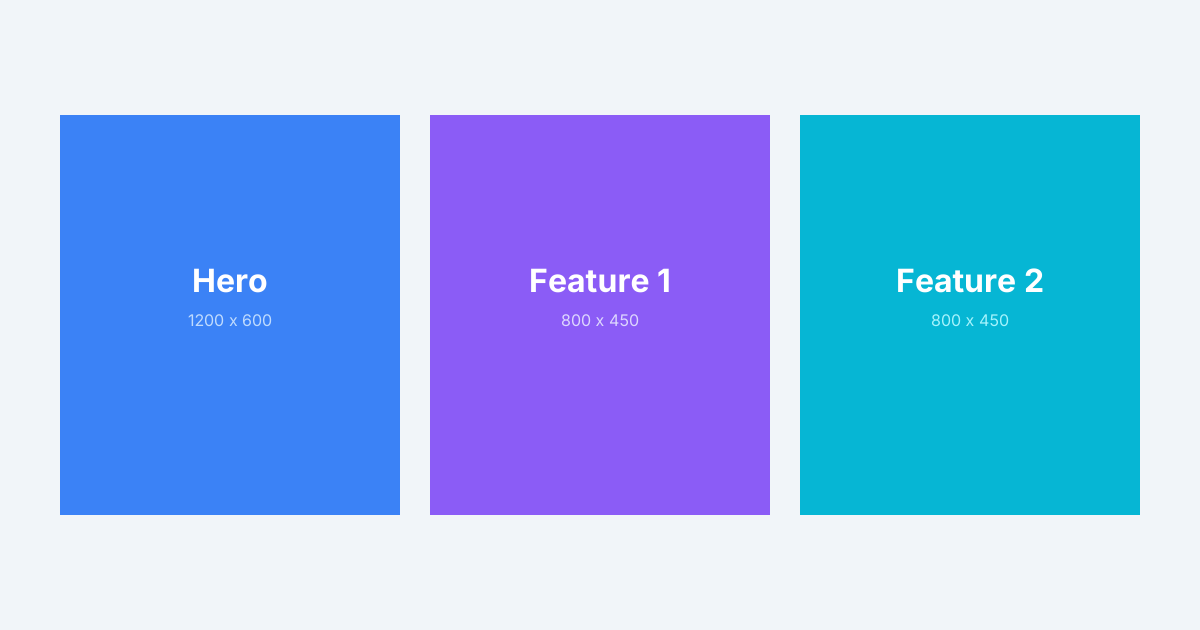
Generate placeholder images
Quickly generate colored rectangles with text overlays for wireframes and mockups — great for rapid prototyping.
Example prompt
“Create three 400×300 placeholder images labeled 'Hero', 'Feature 1', and 'Feature 2' with different background colors.”
Use reusable assets (Pro)
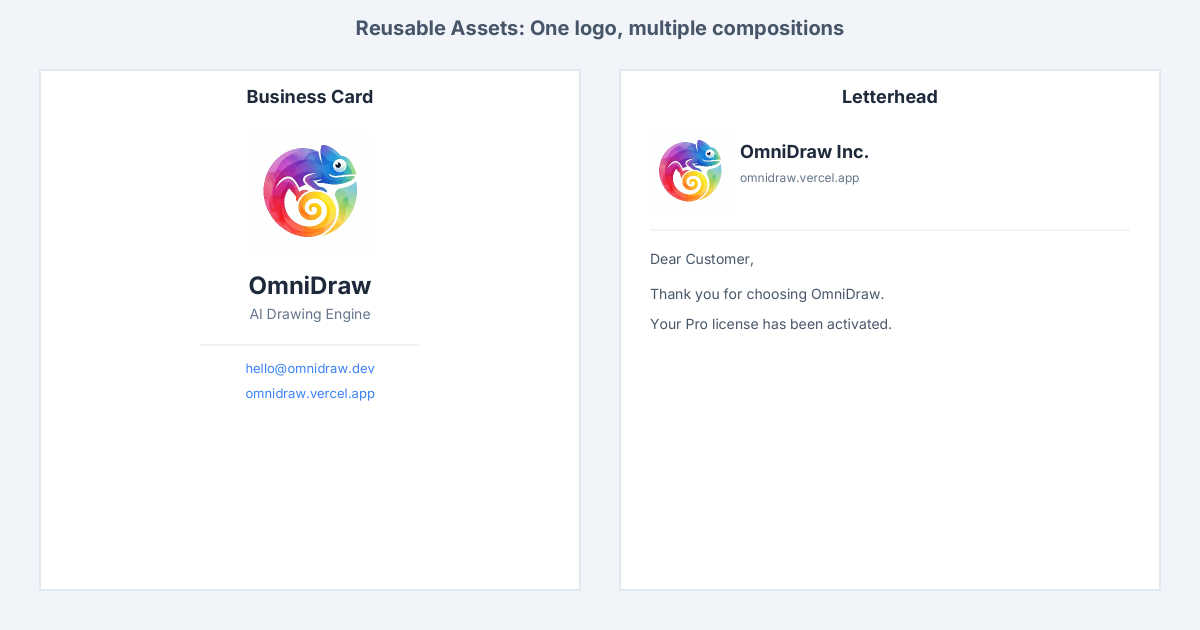
Import a logo or photo once as an asset. Then reference it across multiple compositions — no re-uploading needed.
Example prompt
“Import our company logo, then create two compositions: a business card layout and a letterhead, both using the logo asset.”
Batch export compositions
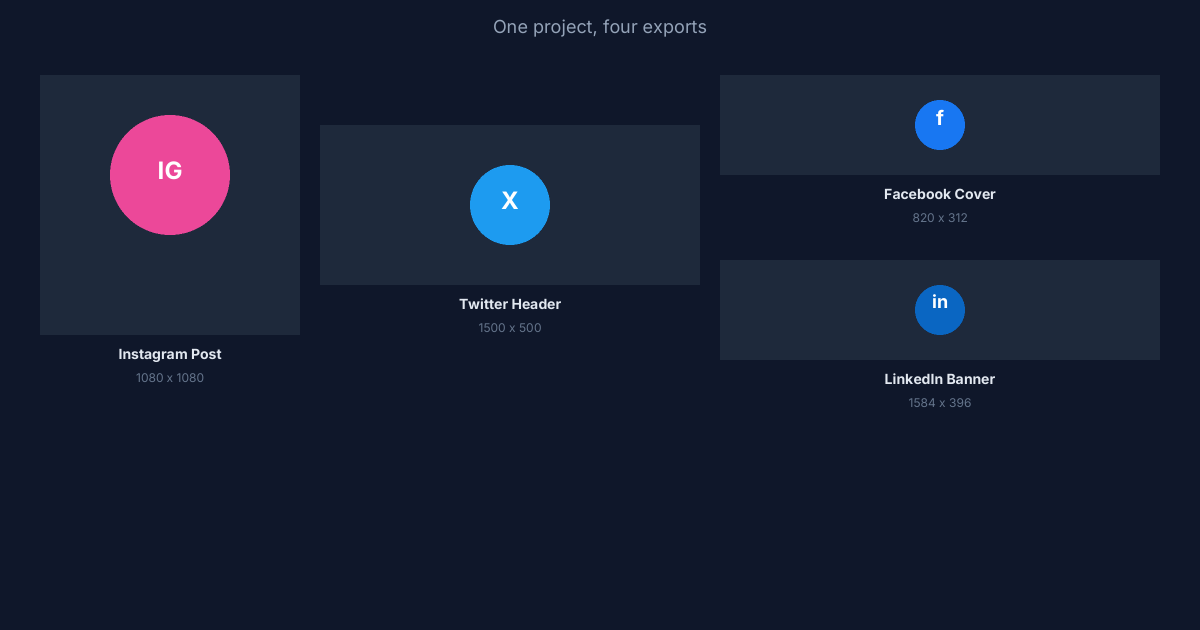
Set up multiple compositions in a single project and export them all. Perfect for generating a set of related visuals.
Example prompt
“Create a project with 4 compositions for social media sizes: Instagram post (1080×1080), Twitter header (1500×500), Facebook cover (820×312), and LinkedIn banner (1584×396).”